
Splitting names comes up more often than you think. A few common situations:
- Mail merges and labels that need a single Full Name and also First and Last separately
- Certificate generation and learning platforms that expect a First Name field
- CRM, HR, and ATS imports that map only one Last Name column
- Email display names and aliases built from name parts
- Joining datasets where one file has Full Name and the other has split name fields
- Event badges or seating charts that print First and Last cleanly
- Courier and shipping systems that accept only one contact name field and choke on extra spaces
If all your names are just “First Last,” almost any method works. The pain starts when people have middle names, multiple middle names, double last names, suffixes like Jr. or III, or inconsistent spacing. That is exactly where many quick-split methods fall apart.
A small, realistic dataset to practice
Copy this into Excel starting in A1:
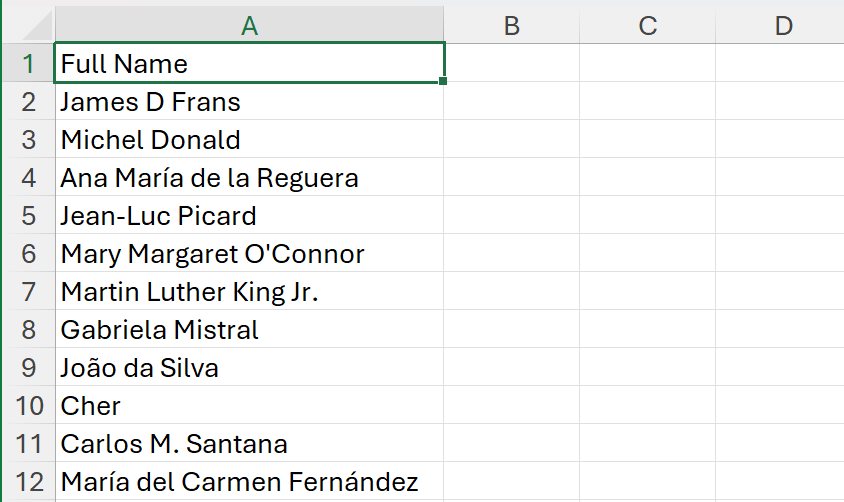
This table includes:
- Extra spaces between words
- Hyphenated names
- Multi-word last names (de la, da, del)
- Suffixes (Jr.)
- Single-word names
- Accents and titles or initials
Before you do anything, the safest move is to normalize spacing and remove hidden characters. That prevents misalignment later.
Why Text to Columns and a simple space split misalign
Text to Columns with Space as the delimiter, or any basic split-by-space approach, creates one column per word. That means:
- People with middle names spill into three or more columns
- People without a middle name spill into two columns
- Your “Middle” column ends up sometimes being middle name, sometimes last name
You can still use Text to Columns for quick jobs, but expect cleanup for real-world lists.
Quick steps if you need it:
- Select the Full Name column.
Data > Text to Columns.

Delimited > Space.
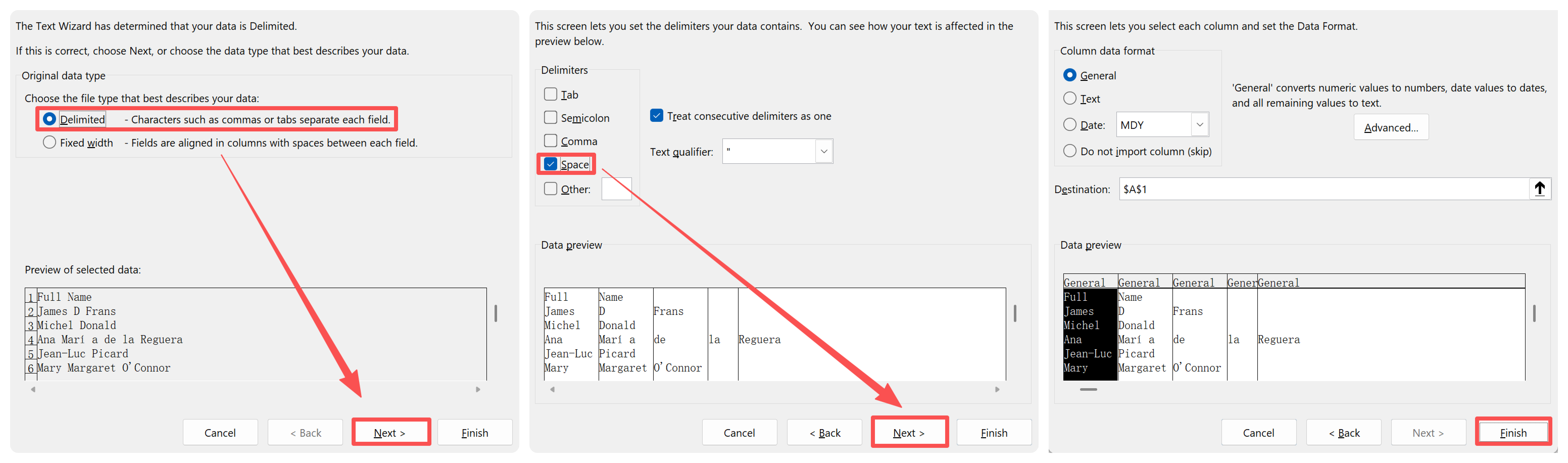
Finish.
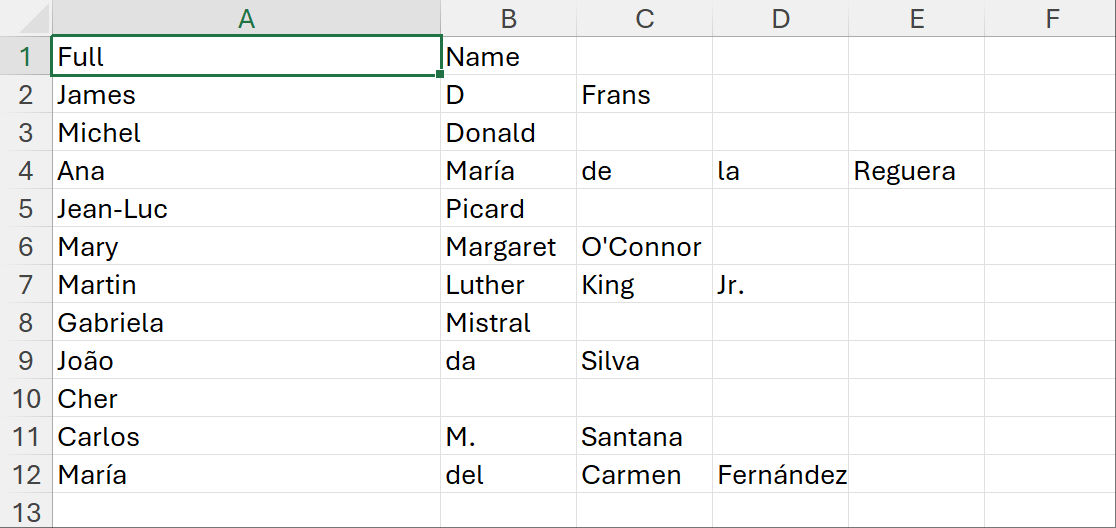
You will get the raw parts, then you can recombine middle chunks later with formulas if needed.
Reliable formulas with TEXTBEFORE and TEXTAFTER
When you only need First and Last and want to ignore any middle names, use the first word as First and the last word as Last. These handle any number of middle names without misalignment.
In B2 (First Name):
=LET(n, A2, IFERROR(TEXTBEFORE(n," "), n))In C2 (Last Name):
=LET(n, A2, IFERROR(TEXTAFTER(n," ",-1), ""))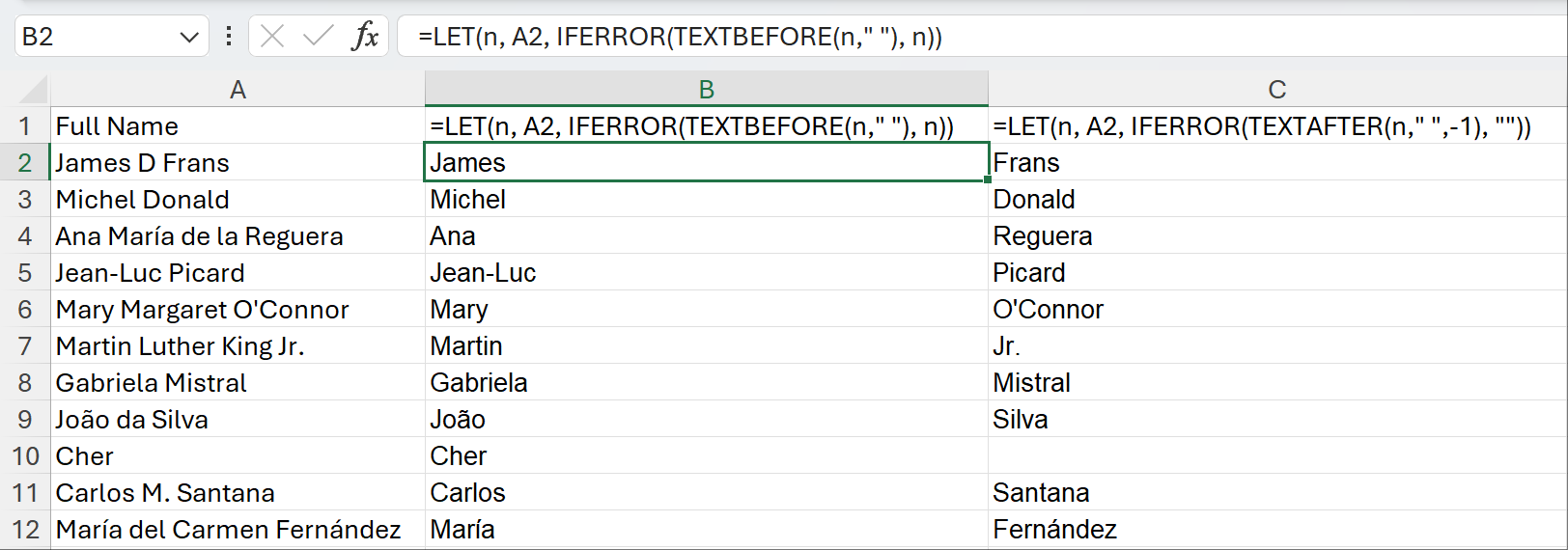
TEXTBEFORE(n," ") returns everything up to the first space. If there is no space, it returns an error, so IFERROR returns the full name instead.
TEXTAFTER(n," ",-1) returns everything after the last space. If there is no space, it returns empty.
Want Middle Name(s) as a single string too? Use TEXTSPLIT plus a quick join.
In D2 (Middle Name[s]):
=LET(
  n, A2,
  parts, TEXTSPLIT(n," ",,TRUE),
  IF(COLUMNS(parts)<=2, "",
     TEXTJOIN(" ", TRUE, DROP(DROP(parts,,1),, -1))
  )
)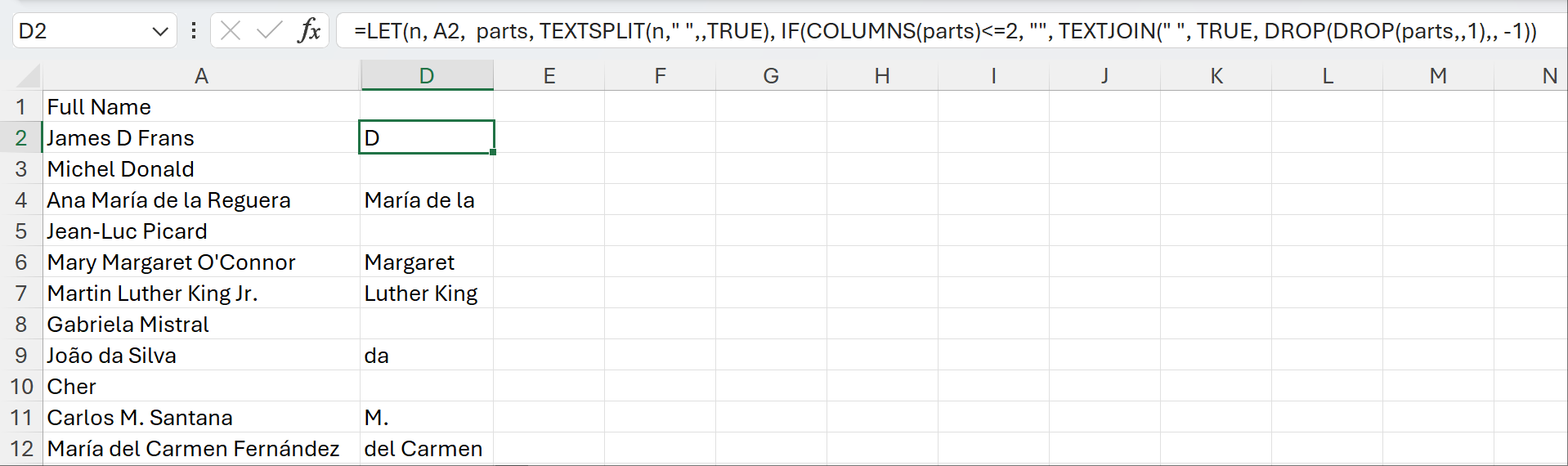
The ignore_empty argument TRUE tells Excel to ignore extra spaces.
This joins everything between the first and last word, which works even for multiple middle names.
All-in-one with TEXTSPLIT (spill into First, Middle, Last)
If your Excel has dynamic arrays and HSTACK, you can build one formula that spills First, Middle, and Last into three columns automatically.
In B2, then drag across to D2:
=LET(
  n, A2,
  parts, TEXTSPLIT(n," ",,TRUE),
  first, INDEX(parts,1),
  last, INDEX(parts,1, COLUMNS(parts)),
  middle, IF(COLUMNS(parts)<=2, "", TEXTJOIN(" ",,DROP(DROP(parts,,1),, -1))),
  HSTACK(first, middle, last)
)- B2 will show First, C2 Middle, D2 Last.
- This approach does not care how many middle names exist. The last token is always the Last Name.
If your Excel does not support HSTACK, keep the same LET but reference each variable separately in three cells:
- First in B2:
=LET(n,A2, parts,TEXTSPLIT(n," ",,TRUE), INDEX(parts,1)) - Middle in C2:
=LET(n,A2, parts,TEXTSPLIT(n," ",,TRUE), IF(COLUMNS(parts)<=2,"", TEXTJOIN(" ",,DROP(DROP(parts,,1),, -1)))) - Last in D2:
=LET(n,A2, parts,TEXTSPLIT(n," ",,TRUE), INDEX(parts,1, COLUMNS(parts)))
Old-but-handy formulas for older Excel
If you are on a version without TEXTSPLIT, TEXTBEFORE, or TEXTAFTER:
First Name in B2:
=IFERROR(LEFT(A2, FIND(" ",A2&" ") - 1), A2)Last Name in D2:
=IFERROR(TRIM(RIGHT(SUBSTITUTE(A2," ",REPT(" ",100)),100)),"")Middle Name(s) in C2:
=IFERROR(TRIM(MID(A2, FIND(" ",A2) + 1, LEN(A2) - FIND(" ",A2) - LEN(D2))), "")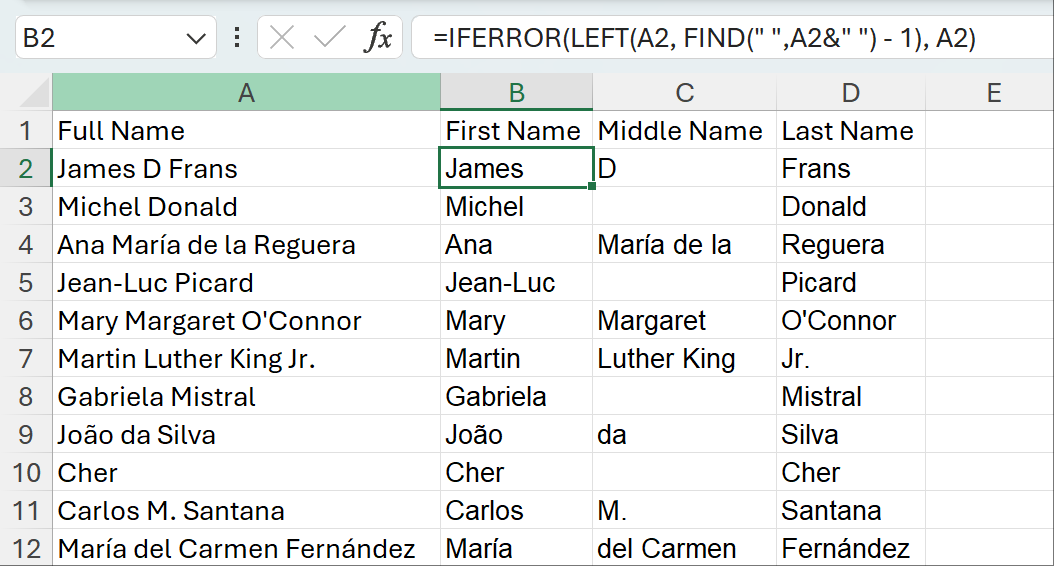
Flash Fill when patterns are easy
If your names are fairly consistent, Flash Fill can be super fast.
- Type the desired First Name result in B2 that matches A2.
- Press Ctrl+E to Flash Fill down.
- Repeat for Last Name in D2.
It guesses patterns well, but it is not deterministic for edge cases like multi-word last names or suffixes.
Handling tricky cases and edge rules
Names are messy worldwide. Here are practical guidelines:
- Hyphenated parts usually belong together already and the formulas above treat them as a single token.
- Suffixes like Jr, Sr, II, III are better stored in a separate Suffix column. If you must do this in Excel only, a robust rule set becomes long quickly.
- Multi-word last names (de la Reguera, da Silva, del Carmen Fernández) are very common. If you need to preserve them reliably, you either need a curated list of particles by language or a smarter tool.
- Single names should simply fill First Name and leave Last Name blank.
When your requirements move beyond simple first-and-last, writing and maintaining all those rules in Excel becomes time-consuming.
Skip the headache for complex lists: let AskExcel do it
AskExcel lets you upload your spreadsheet and describe what you want in plain language. It handles irregular spacing, suffixes, multi-word last names, titles, and more without you memorizing formulas. You get clean columns back and can immediately download the result.
Example prompts you can paste into AskExcel:
- Split the Full Name column into First, Middle, Last, and Suffix. Treat Jr, Sr, II, III, IV as Suffix. Keep hyphenated names intact and keep particles like de, del, la, da, dos, van, von with the last name.
- Clean the Full Name column by removing extra spaces and hidden characters, then split into First and Last only. If there is no last name, leave it blank.
- Create First Name for personalization using only the first token. Ignore titles like Dr., Mr., Ms., Mrs., Prof.
- Standardize the case to proper case for names, but leave suffixes like II or III in uppercase.
- Detect couples written in one cell such as Mary and John Jones, split them into two rows with the shared last name, and copy the email to both.
- Validate the results and flag rows where Last Name is missing or where the name looks like initials only.
For simple two-part names, Excel’s built-in formulas are perfectly fine. For anything with language rules, exceptions, or messy exports, AskExcel is faster and far less error-prone.
Quick reference of formulas used
- First only:
=LET(n,A2, IFERROR(TEXTBEFORE(n," "), n)) - Last only:
=LET(n,A2, IFERROR(TEXTAFTER(n," ",-1), "")) - Middle names joined:
=LET(n,A2, parts,TEXTSPLIT(n," ",,TRUE), IF(COLUMNS(parts)<=2,"", TEXTJOIN(" ", TRUE, DROP(DROP(parts,,1),, -1)))) - All-in-one spill (First, Middle, Last):
=LET(n,A2, parts,TEXTSPLIT(n," ",,TRUE), first,INDEX(parts,1), last,INDEX(parts,1,COLUMNS(parts)), middle,IF(COLUMNS(parts)<=2,"",TEXTJOIN(" ",,DROP(DROP(parts,,1),, -1))), HSTACK(first,middle,last))
That gives you consistent, non-misaligned results even when names include multiple middle names or inconsistent spacing.