
Leading zeros sneak in from exports, manual data entry, and system-generated codes. You will often strip them when:
- Matching IDs across systems that store the same code differently
- Preparing lookup keys so VLOOKUP or XLOOKUP actually match
- Cleaning CSVs from ERPs or POS systems that pad numbers with zeros
- Normalizing phone or account numbers before analysis
- Converting text-like numbers back to real numbers for math and pivots
- Generating mail lists or reports where 000123 should appear as 123
Before you start, decide whether you truly want to remove them. For example, ZIP codes and product SKUs often require leading zeros. If you need to preserve them, change formatting rather than altering the value.
Sample data to follow along
Paste this into A1 of a blank sheet:
| Input | Notes |
|---|---|
| 00958 | Text that looks like a number |
| '00958 | An apostrophe forces text in Excel |
| 000123 | Numeric-looking text with multiple leading zeros |
| 00000 | Represents zero |
| 01230 | Keep internal zeros like 1230 after cleanup |
| 00045ABC | Text with letters; remove only the leading zeros |
| 00123 | Number padded by a custom number format |
Assume the values are in A2:A8.
Case 1: They are real numbers, only formatted to show zeros
Sometimes the value is already numeric and Excel is just displaying zeros due to a custom format like 00000.
Steps:
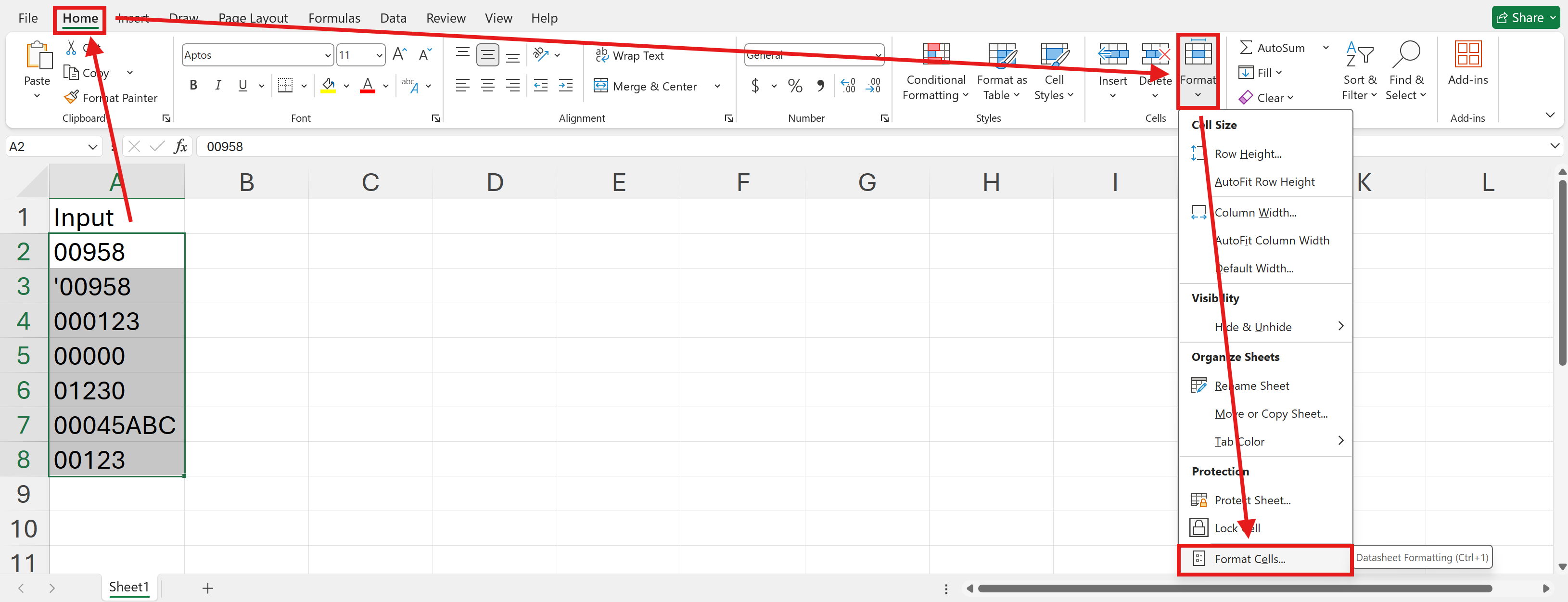
- Select the range.
Press Ctrl+1 to open Format Cells or click Home, Format, Format Cells.
Choose General or Number, then OK.
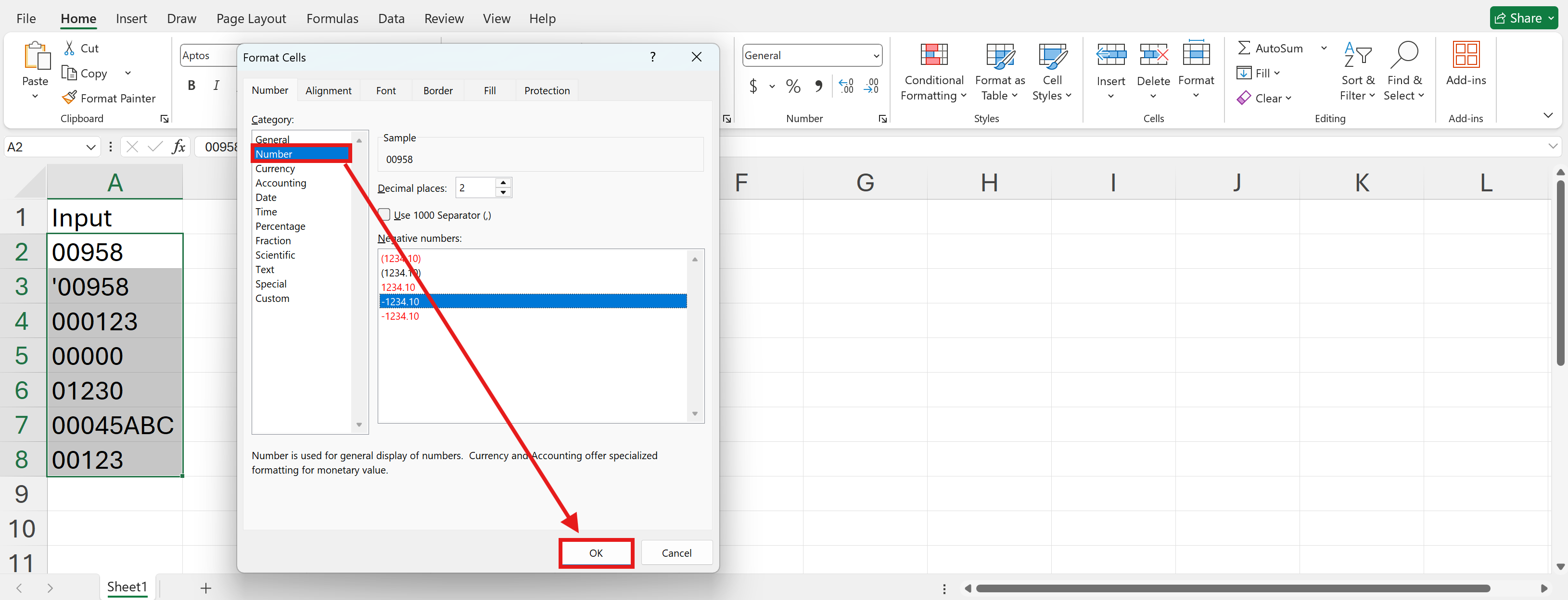
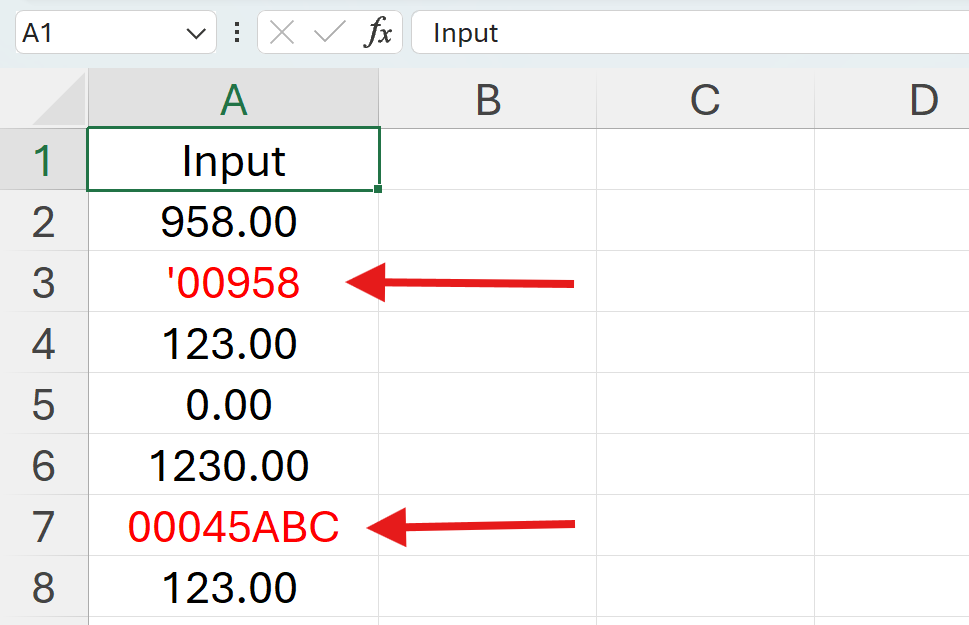
This changes the display, not the stored value, which is what you want for ZIP codes you need to keep padded. If the text is not Number, It will failed.
Case 2: They are text that only contains digits
If the cells are text, convert them to numbers. This removes leading zeros and keeps internal zeros.
Formula options: In B2 enter =VALUE(A2) and fill down.
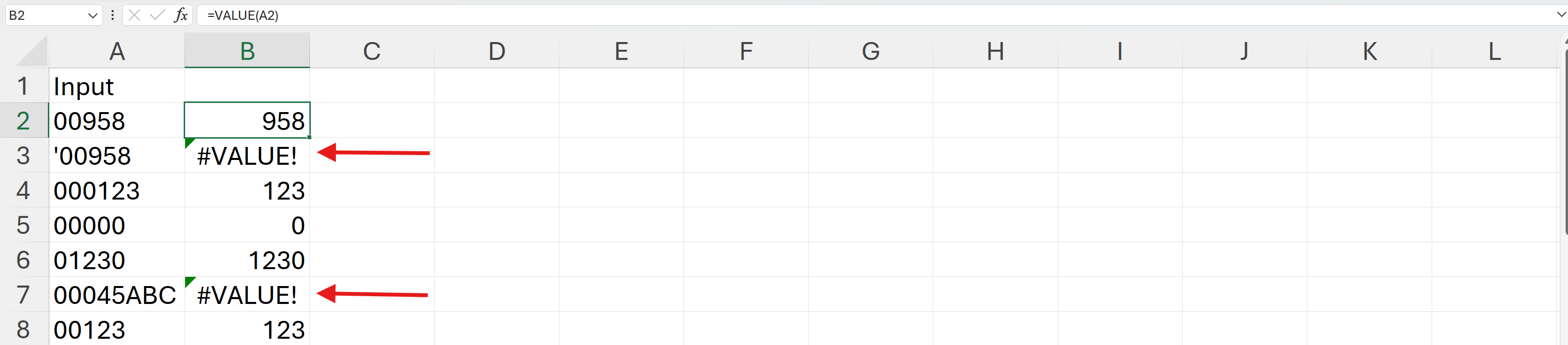
These approaches turn "00958" into 958, "00000" into 0, and "01230" into 1230. And still, non number cell will be failed.
Case 3: Mixed strings like 00045ABC
When cells include letters, VALUE will error. If you need to strip only the leading zeros while leaving the rest untouched, use a simple peel-off formula across columns.
In B2: =IF(LEFT(A2)="0", RIGHT(A2, LEN(A2)-1), A2)
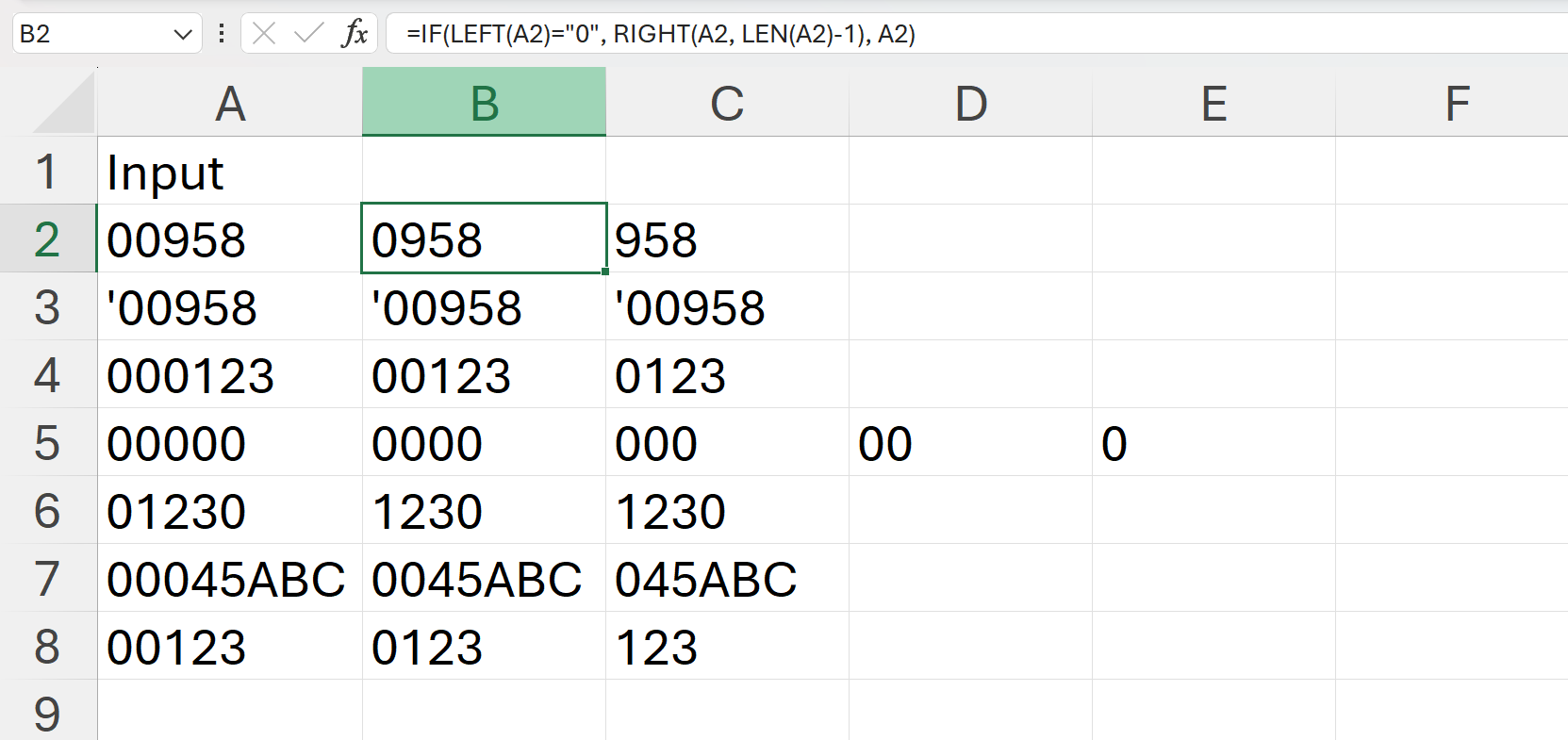
Fill B2 down. This removes one leading zero.
Now select column B, copy it to column C with the same formula, and repeat once or twice more until the values stop changing. For example, 00045ABC becomes 45ABC. Internal zeros remain unaffected.
If your data has at most three or four leading zeros, two or three repeats usually finish the job quickly.
Prefer an easier way for messy, mixed columns? Try AskExcel
If your column mixes numbers, text, codes, and different patterns, cleaning it with formulas can get fiddly. AskExcel lets you upload your Excel or CSV and describe what you want in plain language. It will handle the rules, apply them across the sheet, and give you a clean file.
Example prompts you can copy:
“Remove all leading zeros in column A on Sheet1. Convert numeric-looking values to numbers and leave true text alone.”
“In Orders.csv, strip only leading zeros from OrderID. Do not change SKU or any zeros that appear later in the value.”
“From the Customers sheet, convert phone numbers by removing leading zeros, then save the cleaned column as text.”
“If a cell contains letters, remove only the leading zeros. If it is purely digits, convert it to a number.”
For simple tasks, Excel’s built-in options are great. When the data is messy or the rules vary by column, AskExcel is faster and far less error-prone. Try it free at https://askexcel.cc