
When you work with wide and tall worksheets it helps to keep headers and key identifiers visible while you scroll. Here is a step-by-step guides.
Step-by-step (Windows and Mac Excel)
- Click cell B2. This tells Excel you want everything above and to the left of that cell frozen.
- Go to the View tab on the ribbon.
- Click Freeze Panes.
- Choose Freeze Panes from the dropdown.
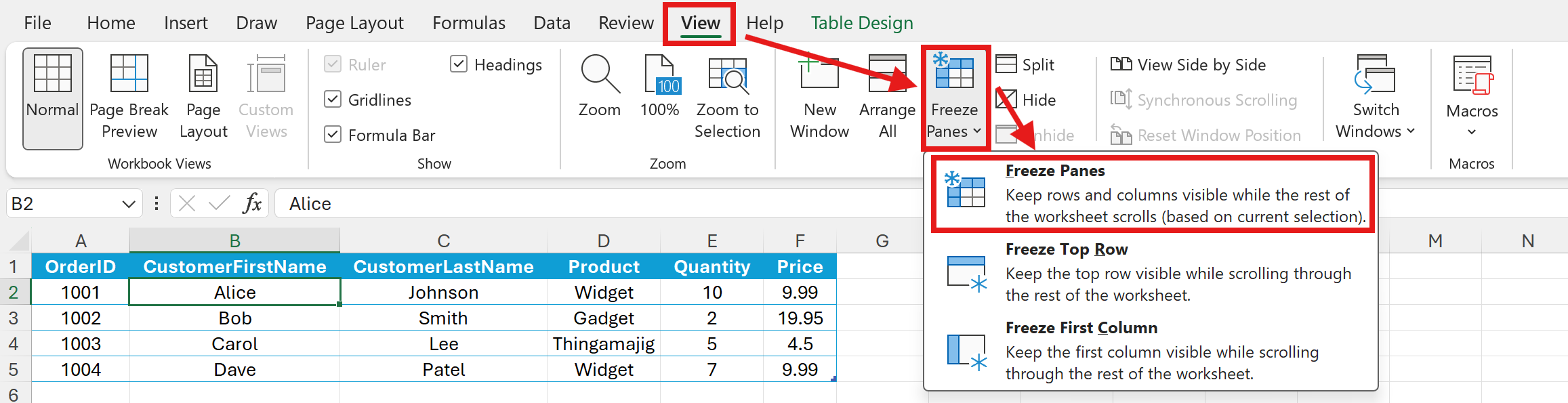
After that, row 1 will remain fixed at the top and column A will remain fixed at the left while you scroll the worksheet.
Quick variations
- To freeze only the top row use View > Freeze Panes > Freeze Top Row.
- To freeze only the first column use View > Freeze Panes > Freeze First Column.
How to unfreeze panes
- Go to View > Freeze Panes > Freeze Panes. This returns the sheet to normal scrolling.