Before jumping to formulas, here are typical situations where age from a birthdate is required:
HR rosters and benefits eligibility where a full-years age determines plan options
School admissions, grade placement, and youth program eligibility based on a cutoff date
Insurance underwriting and pricing that uses age as of policy start
Marketing and customer analytics that group people into age bands
Healthcare forms and patient intake where age needs to be printed or validated
Events, sports leagues, and competitions that enforce age brackets as of a specific date
In all of these, you usually need age in full years, also called completed years. This is where a common “shortcut” formula goes wrong.
Sample data to follow along
Copy this small table into Excel and format the Date of Birth column as a Date.
Name
Date of Birth
Alex Chen
2012-10-02
Mia Park
2014-05-02
Noah Singh
2014-06-03
Zoe Li
2014-07-03
Emma Rivera
2002-06-03
Newborn Demo
2023-12-31
Assume:
Birthdate is in B2 downward.
We will calculate age in C2 downward.
The common mistake that overstates age
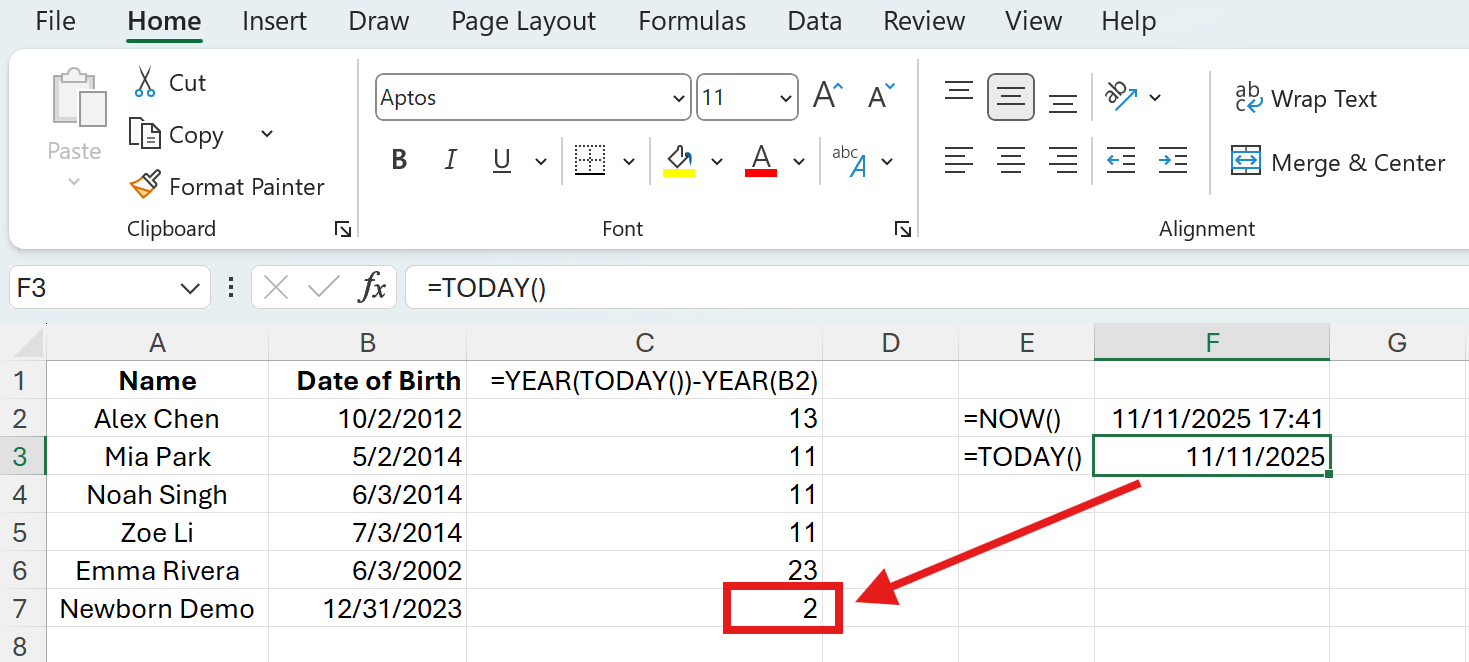
You may see =YEAR(TODAY())-YEAR(B2) or =YEAR(NOW())-YEAR(B2) in older tutorials. It looks fine, but it is not accurate for full-years age. For someone born on 2023-12-31, that formula returns 1 on 2024-01-01 even though no birthday has passed yet. If you must calculate age in full years, do not use this shortcut.
Correct ways to calculate age in full years
You have a few accurate choices. Pick the one you like most.
1) The simplest: DATEDIF
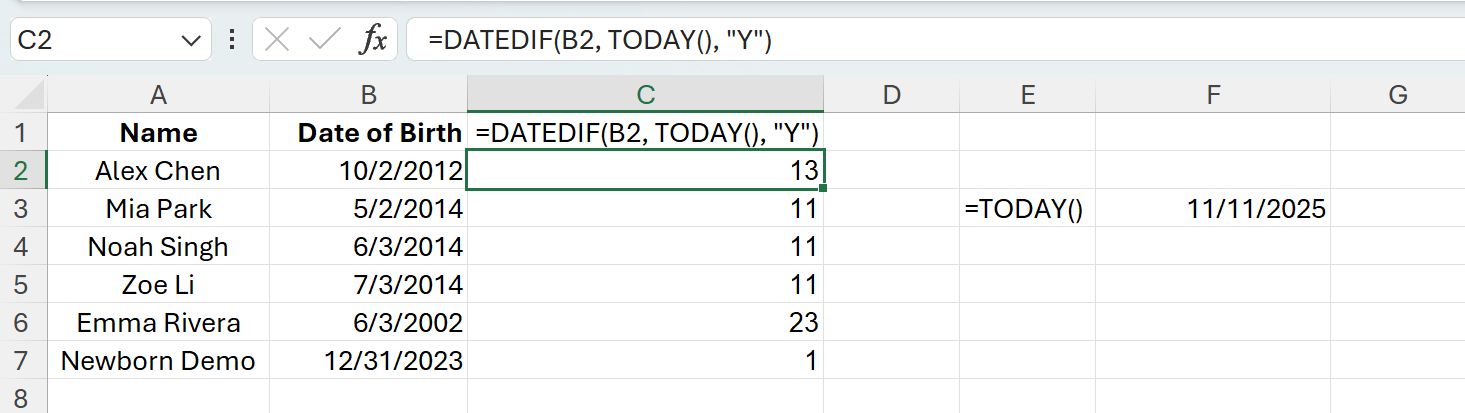
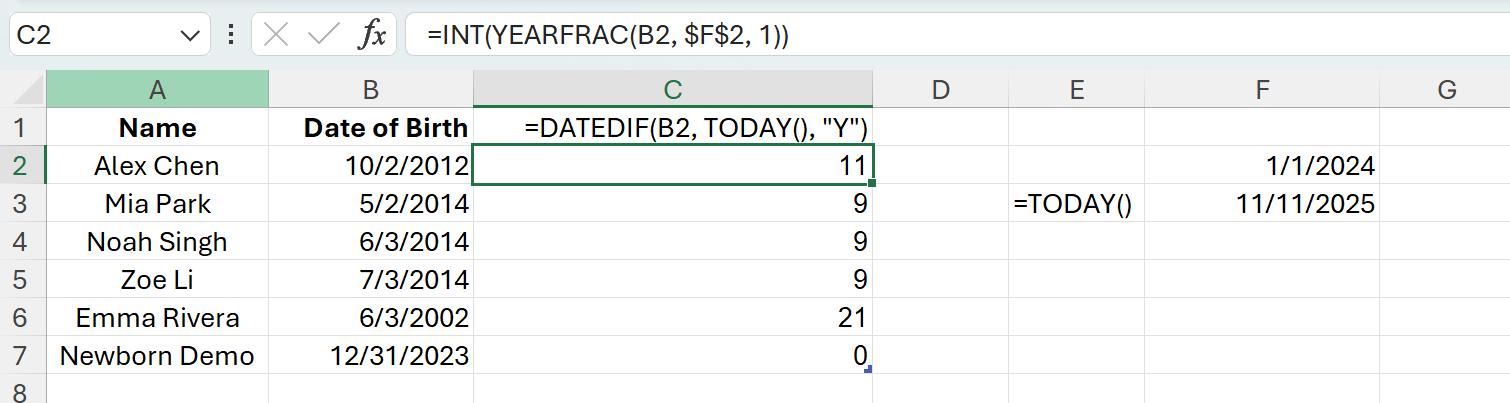
Age as of today: =DATEDIF(B2, TODAY(), "Y")
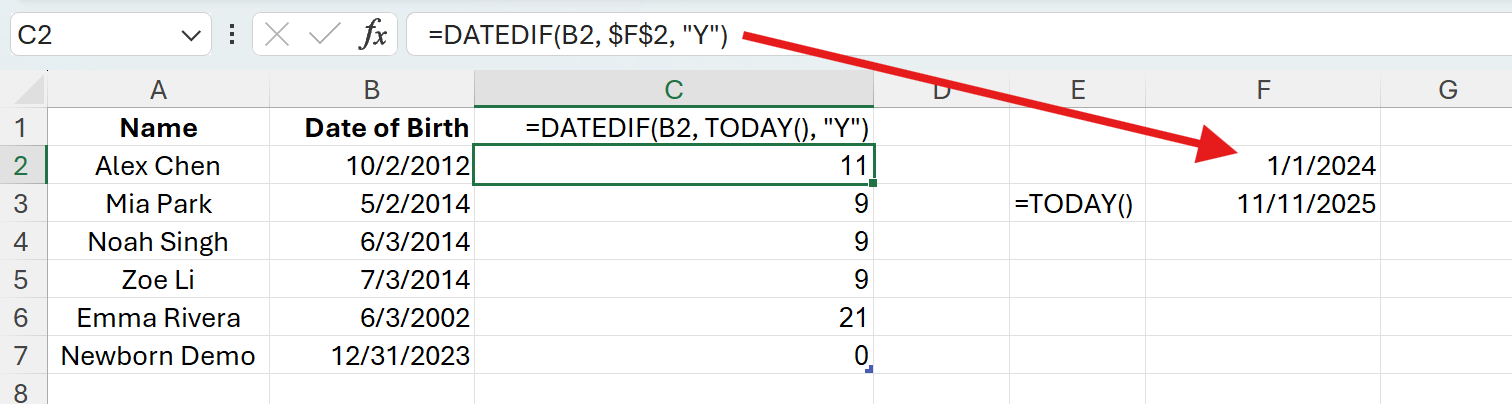
Age as of a specific cutoff date (put the cutoff in, say, F2): =DATEDIF(B2, $F$2, "Y")
DATEDIF returns whole years completed between two dates. It handles end-of-year birthdays correctly, so the 2023-12-31 example will show 0 on 2024-01-01.
2) If you prefer decimals first: YEARFRAC + INT
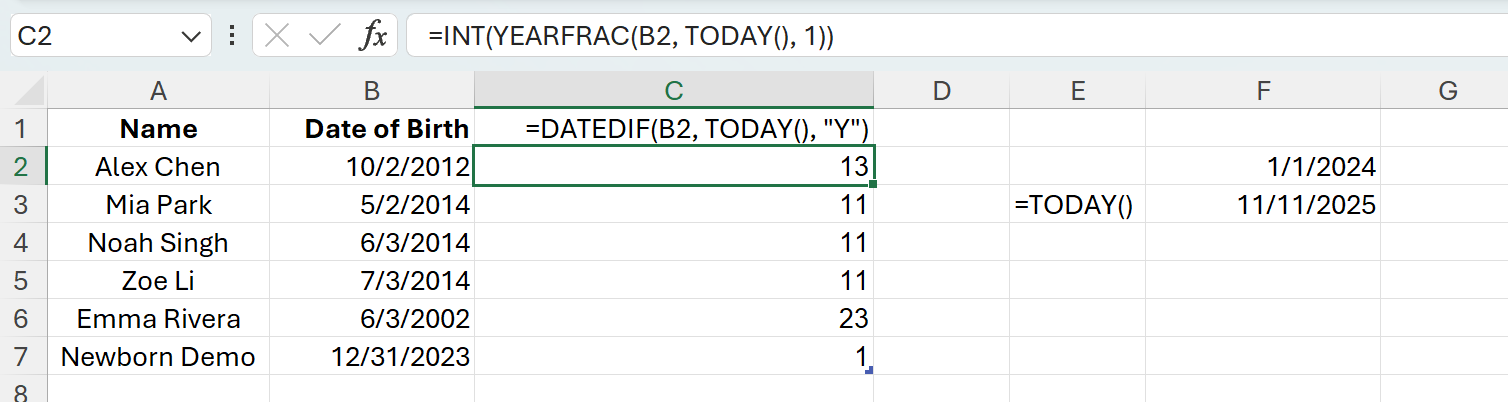
Age as of today: =INT(YEARFRAC(B2, TODAY(), 1))
Age as of a cutoff date in F2: =INT(YEARFRAC(B2, $F$2, 1))
YEARFRAC gives a decimal year count. Wrapping it in INT keeps only full years. This matches most scenarios well, including leap years.
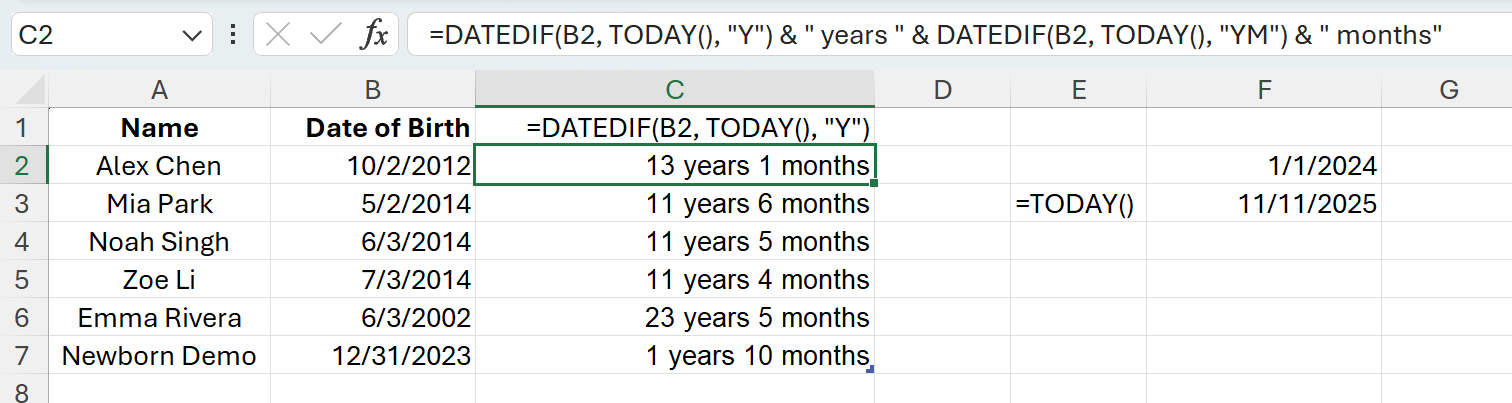
Optional: years and months together
If you want a friendly label like 9 years 4 months:
If you see errors or zeros everywhere, make sure your dates are real dates, not text. Re-enter a date or use Data > Text to Columns to convert text to dates.
Watch out for regional formats. If your locale expects DD/MM/YYYY, type dates that match your system. Using ISO style like 2024-02-15 is unambiguous.
For Feb 29 birthdays, Excel methods above follow standard date math. If your policy defines a specific rule for leap day birthdays, calculate age as of a cutoff date and adjust per your rule.
Go beyond formulas with AskExcel
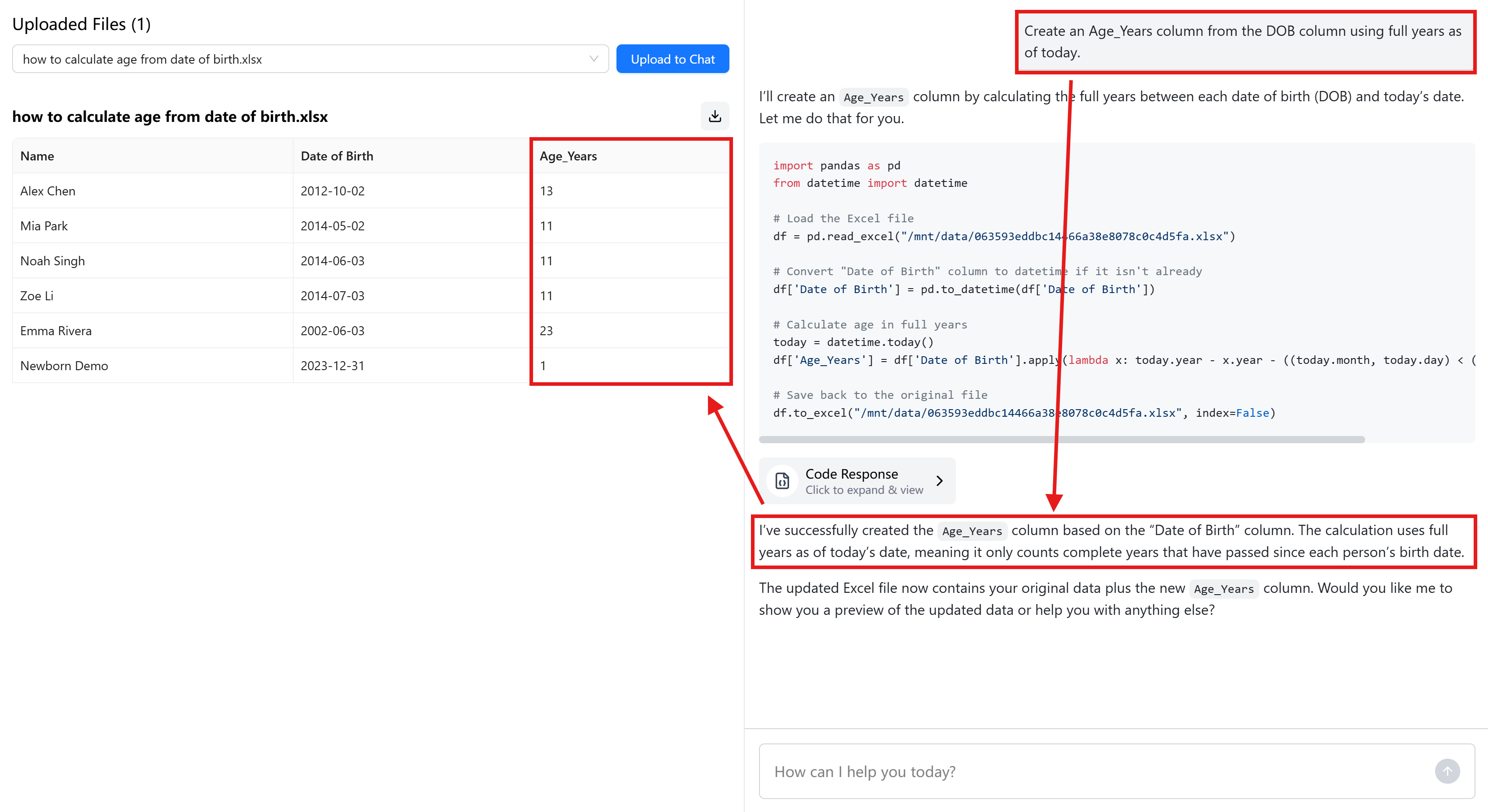
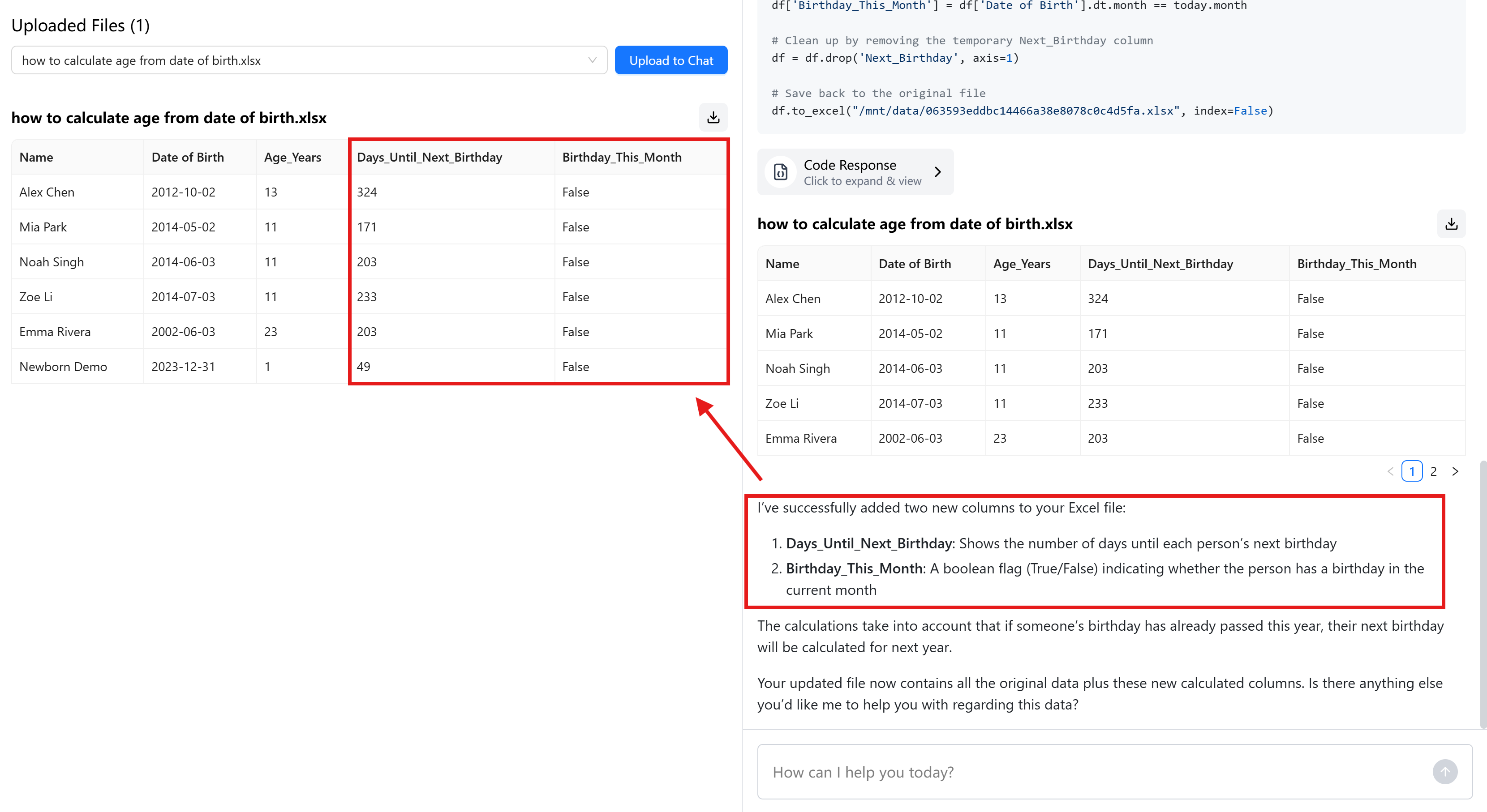
For a few cells, these formulas are perfect. For thousands of rows, mixed date formats, cutoff-date reporting, or age bands, AskExcel is much faster. Upload your Excel or CSV, describe what you want in simple language, and it will add the columns or summaries for you. No formulas to memorize.